Step 3 — Choose Your Proxy Mode (Optional)
By default, your staple IP is configured in Reverse Proxy mode. This is the simplest option and works for most web and game traffic with no setup on your origin.
If you need a different mode (for example, if you need your origin to see the real client IP, or if you want full IP-layer routing), click the small dropdown arrow next to Reverse Proxy in the MODE field.
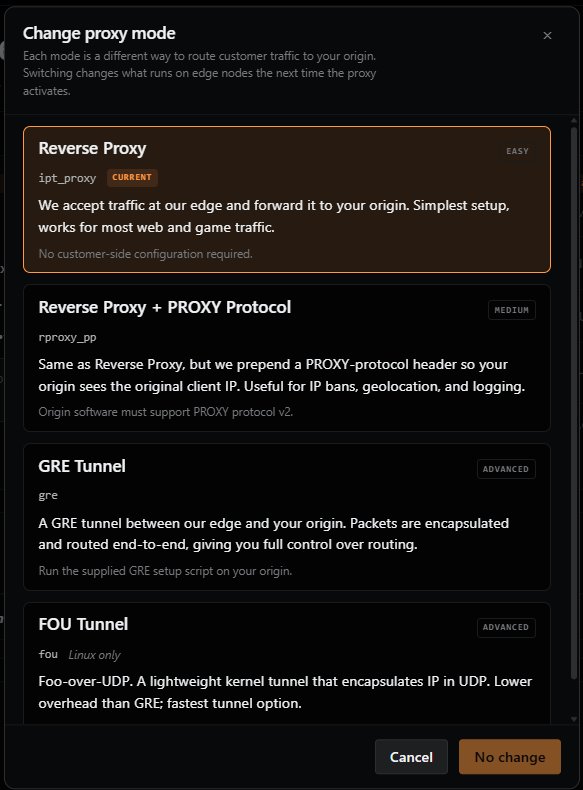
A dialog will open showing all four available modes. Each mode has a difficulty badge (EASY / MEDIUM / ADVANCED) and a short description.
For full details on each mode — including use cases, origin requirements, and tradeoffs — see the Proxy Modes Reference.
Note: Switching modes only takes effect the next time the proxy activates. If your proxy is already active, you'll need to deactivate and reactivate it for the new mode to apply.
Previous: ← Step 2 — Review Your Staple IP Dashboard Next: Step 4 — Activate the Proxy →