Step 1 — Open the Flow Editor
From your Web Protection instance overview, locate the Flow card. It shows a summary of your existing rules and how they're evaluated.
- Click Edit flow → in the top-right corner of the Flow card.

The Flow editor will open, showing your existing rules in a list on the left and the rule editor panel on the right.
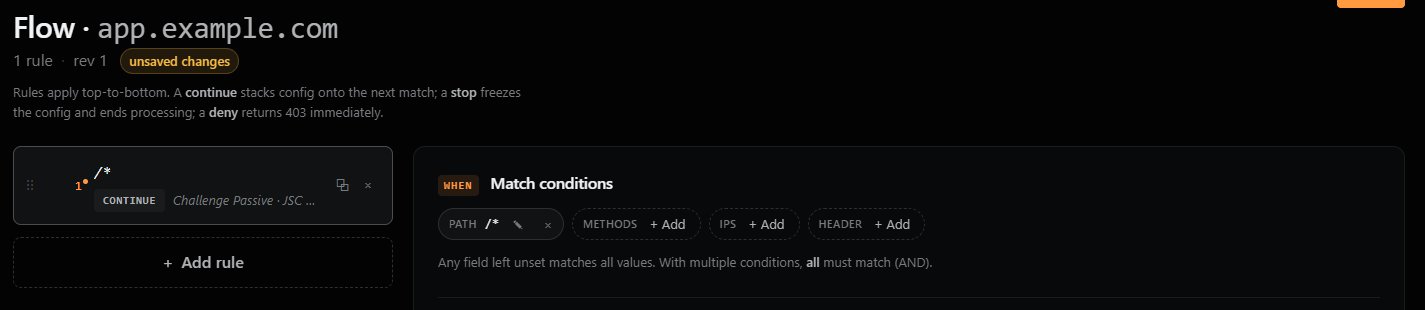
Tip: New instances start with one default rule that applies a passive challenge to all traffic (
/*). You can edit this rule, add new rules, or remove it entirely.
To add a new rule, click + Add rule below the rule list. To edit an existing rule, click it.
Previous: ← Configuring Flow Rules (overview) Next: Step 2 — WHEN: Define Match Conditions →