Step 2 — Enter Your Customer Key
When the installer prompts for it, paste the Customer Key you copied earlier and press Enter.
Director will register with GatewaySentry's tunnel management system and start its background service. You'll see a success message with three management commands worth remembering:
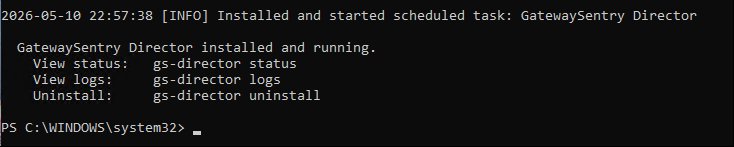
| Command | Purpose |
|---|---|
gs-director status |
Print a one-shot status report without opening the menu. |
gs-director logs |
Show recent Director log output. |
gs-director uninstall |
Remove Director and stop the background service. |
Note: If your Customer Key is rejected, you can replace it later using Reconfigure (change key) from the menu — see the Menu Options Reference.
Previous: ← Step 1 — Install Director Next: Step 3 — Set Up the Tunnel →