Step 3 — Add a New Rule
Click + Add rule in the rules list to open the new rule editor on the right.
A rule has two parts:
- WHEN — Match conditions (direction, protocol, ports, IP, and for TCP, connection state).
- DO — The action to take if the rule matches (Accept or Drop).
WHEN — Direction
Every rule applies to one direction of traffic.
| Direction | Description |
|---|---|
| Inbound | Traffic arriving at the staple IP from a remote source. Use this to control who can reach your service. |
| Outbound | Traffic leaving the staple IP toward a remote destination. Use this to control where your origin can send traffic to. |
The IP field on the right side of the editor adapts to the direction:
- For Inbound rules, you'll see Source IP / CIDR — the remote source allowed to reach this staple.
- For Outbound rules, you'll see Destination IP / CIDR — the remote destination this staple may reach.
WHEN — Protocol
Pick one of three protocol options. The form changes based on your selection.
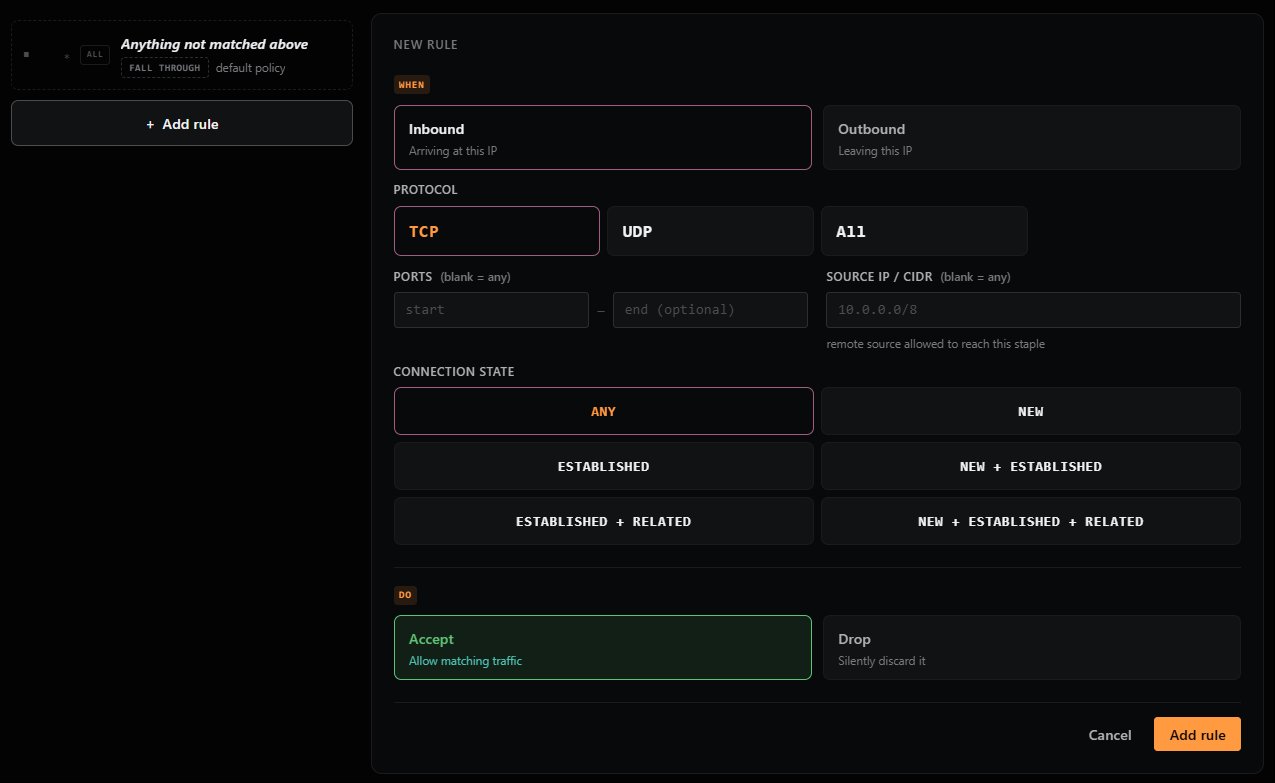
TCP
For connection-oriented traffic (HTTP, HTTPS, SSH, most game servers using TCP).
Selecting TCP enables both the Ports field and the Connection State options (see below).
UDP
For connectionless traffic (DNS, QUIC, most real-time game protocols, VoIP).
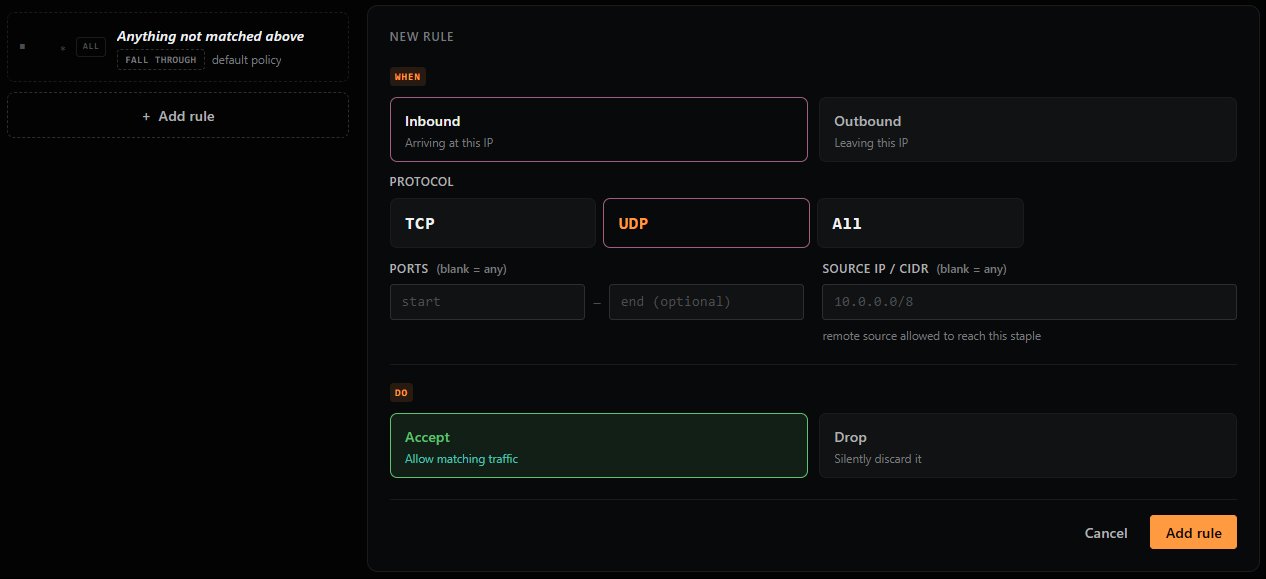
Selecting UDP enables the Ports field but hides the Connection State options — UDP is connectionless, so connection-state matching doesn't apply.
All
For protocol-agnostic rules that match every IP packet.
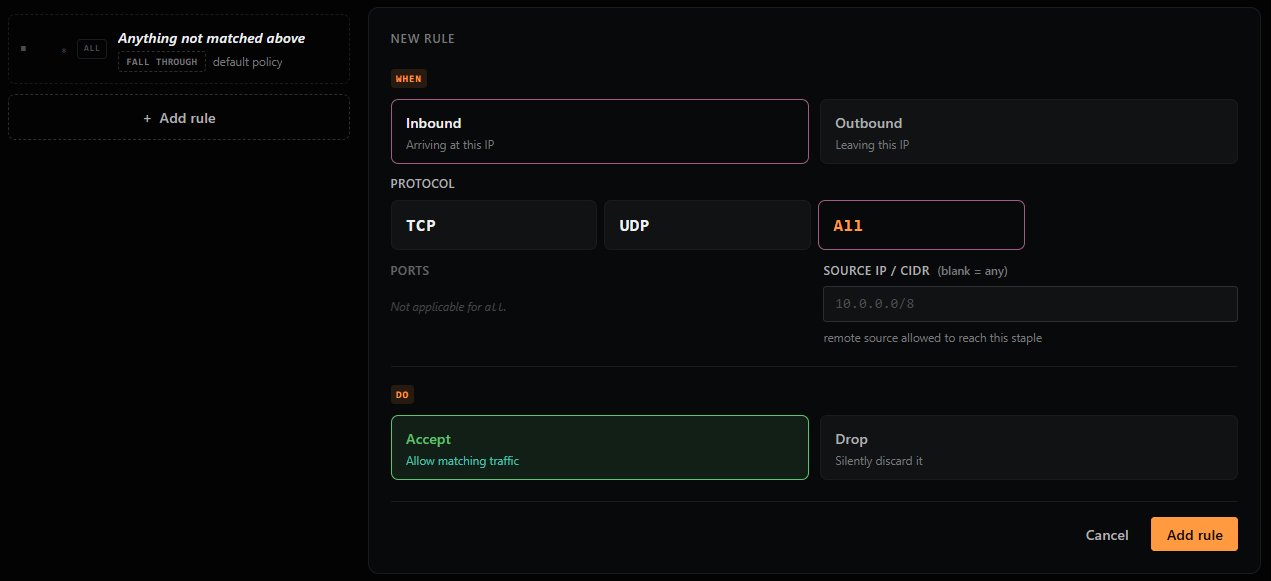
Selecting All disables the Ports field (shown as "Not applicable for all") and hides Connection State. Use this when you want to apply a rule based purely on IP address — for example, allowing or blocking an entire IP range regardless of what protocol they're using.
Tip: "All" matches every IP-layer protocol — TCP, UDP, ICMP, and others. If you only care about TCP and UDP, you'll need separate rules for each.
WHEN — Ports
Only available for TCP and UDP.
| Field | Description |
|---|---|
| Start | The first port in the range (e.g., 80). |
| End (optional) | The last port in the range (e.g., 443). Leave blank to match a single port. |
Leave both fields blank to match any port.
Examples: -
80to (blank) → matches port 80 only -8000to8999→ matches ports 8000 through 8999 - (blank) to (blank) → matches any port
WHEN — Source IP / CIDR (Inbound) or Destination IP / CIDR (Outbound)
Restrict the rule to a specific remote IP or range.
- Accepts a single IP (
203.0.113.42) or a CIDR range (10.0.0.0/8,192.168.1.0/24). - Leave blank to match any address.
For Inbound rules, this is the source the traffic is coming from. For Outbound rules, this is the destination the traffic is going to.
WHEN — Connection State
Only available for TCP rules.
Connection state matching uses connection tracking (conntrack) to make rules aware of the state of TCP connections. Selecting a specific state turns the rule into a stateful rule. Selecting ANY keeps the rule stateless.
| State | Matches |
|---|---|
| ANY | Any packet, regardless of connection state. The rule is stateless. |
| NEW | The first packet of a new connection (typically the TCP SYN). Use this when you want to restrict who can initiate connections. |
| ESTABLISHED | Packets that are part of an already-tracked connection. Common for "allow return traffic" rules. |
| NEW + ESTABLISHED | Both new connections and ongoing traffic on those connections. A common pattern when allowing a service. |
| ESTABLISHED + RELATED | Existing connections plus packets that are related to them (e.g., ICMP error messages, or auxiliary connections from protocols like FTP). |
| NEW + ESTABLISHED + RELATED | The fullest stateful match — new, ongoing, and related traffic. The most common pattern for stateful firewall rules. |
What does "stateless" mean in the rules list? When a saved rule shows "stateless" next to its action, it means the rule doesn't track connection state — either because Connection State is set to ANY, or because the protocol is UDP or All (which don't support connection state matching). Stateless rules apply on a per-packet basis without any awareness of preceding traffic.
When to use stateful vs stateless: - Stateless (ANY) is simpler and slightly cheaper at the packet level. Fine for blanket allow/deny rules where conn state doesn't matter. - Stateful (NEW / ESTABLISHED / RELATED) is more precise. It lets you write rules like "only allow new connections from these IPs, but allow return traffic from anywhere."
DO — Action
Pick one of two actions.
| Action | Description |
|---|---|
| Accept | Allow matching traffic to pass through to your origin (Inbound) or out from your origin (Outbound). |
| Drop | Silently discard matching traffic. The sender receives no response — the packet effectively disappears. This is preferred over a rejection in most security contexts because it gives attackers less information to work with. |
Save the Rule
Click Add rule in the bottom-right of the editor. The new rule appears in the rules list on the left.
Adding a rule does not apply it yet. You still need to click Apply at the top or bottom of the editor to commit your changes — see Step 4 — Apply Your Changes.
Previous: ← Step 2 — Configure the Default Policy Next: Step 4 — Apply Your Changes →